
Image Color Picker
Pick any color from an image with a magnified, pixel-precise loupe — get hex, RGB, and HSL instantly.
Written by SamundraLast updated
Drag and drop a file here
Supports .jpg, .png, .webp, and .gif
Your image is never uploaded anywhere — everything runs on your device.
Related tools

Introduction
Image Color Picker is an online tool that lets you pick a color directly form the image. The tool instantly view it's HEX, RGB and HSL values. You can get an exact color code of any point from any uploaded image.

Color picker makes it easy to identify the color from any image without guessing their values by own. You can simply just drag and drop an image or upload the image file and click on the area containing the color you want.
Pick a Color from an image
When we want to use a in the website or graphic design, we may not know it's exact color code. Finding the right color and it's color code is a difficult task. A image color picker solves this problem by providing the color code instantly.
Using this tool you can do the following:
- Pick a color from an image instantly.
- Get hex code of selected pixel instantly.
- Find RGB color value.
- View color in HSL format.
- Compare different colors within the image just by changing the mouse pointer.
- Copy color codes just by clicking on the pixel.
- Identify the color for other usages.
HEX, RGB and HSL Color Values
An image may look simple but it contains millions of colors in it. Digital tools usually represent those colors using standardized color format. The most common color formats provided by Useful Tooler Image Color Picker are HEX, RGB and HSL format.
- HEX Color
A hex color is a six-digit hexadecimal code that represents certain color. It normally starts with a # followed by six hexadecimal characters.
Example:
#FF0000 represents red.
HEX color codes use combinations of numbers from 0–9 and letters from A–F. Each pair represents the intensity of red, green, and blue.
- RGB Color
RGB stands for Red, Green, and Blue. It represents colors on the basis of the intensity of the three primary colors i.e. red, blue and green. The first value represent intensity of red, followed by blue and then green.
An RGB color is commonly written as:
RGB(255, 0, 0)
Here, the intensity of red is 255, while green and blue are set to 0, producing red.
The RGB model is widely used for screens, websites, applications, and other digital displays.
- HSL Color
HSL stands for Hue, Saturation, and Lightness. Instead of describing a color through red, green, and blue intensity, HSL describes the color based on its hue and how saturated or light it is.
The three components are:
- Hue – identifies the basic color.
- Saturation – determines how intense or muted the color appears.
- Lightness – controls how light or dark the color appears.
An HSL color picker can be especially useful when adjusting colors for web design because hue, saturation, and lightness are easier to understand when making visual color changes.
What does Color Values even mean?
RGB is based on three channels red, green, and blue. Each channel generally uses a value between 0 and 255.
- RGB(255, 0, 0) = Red
- RGB(0, 255, 0) = Green
- RGB(0, 0, 255) = Blue
- RGB(0, 0, 0) = Black
- RGB(255, 255, 255) = White
Changing the intensity of red, green, or blue produces different colors.
For example: Combining high levels of red and green produces yellow, while combinations of green and blue can produce cyan.
Why Use Useful Tooler Image Color Picker?
Manually finding a color from an image can be inaccurate. A color picker lets you sample the actual color from the image and obtain its digital value.
- Accurate Color Identification
Instead of estimating a color visually, you can select it directly from the image and get its corresponding HEX, RGB, or HSL value.
- Useful for Web Design
Web designers can use an image color picker to extract colors from photographs, illustrations, brand assets, and other visual references when creating a website color palette.
- Create a Color Palette
Picking several colors from the same image can help you build a consistent color palette. You can identify dominant colors, accent colors, backgrounds, and complementary shades for your design.
- Easy Color Matching
If you are trying to match a website element, graphic, or UI component to an existing image, sampling the original color provides a reliable starting point.
Common Uses of Useful Tooler Image Color Picker
An image color picker can be useful for:
- Web design
- UI and UX design
- Graphic design
- Logo design
- Branding
- Photography
- Digital illustration
- Color palette creation
- Social media graphics
- Presentation design
- Image editing
Looking for something else? Try Useful Tooler Passport Photo Maker For Free
How to use
Upload Your Image
You can upload any image you want to analyze of your own choice.

Hover over to find codes.
You can hover your mouse over the place whose color code you want to know.
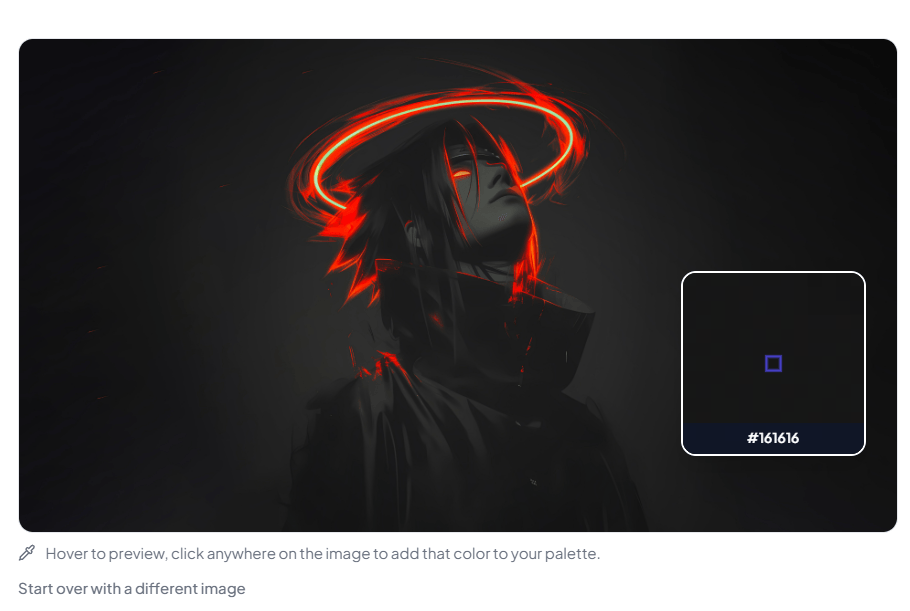
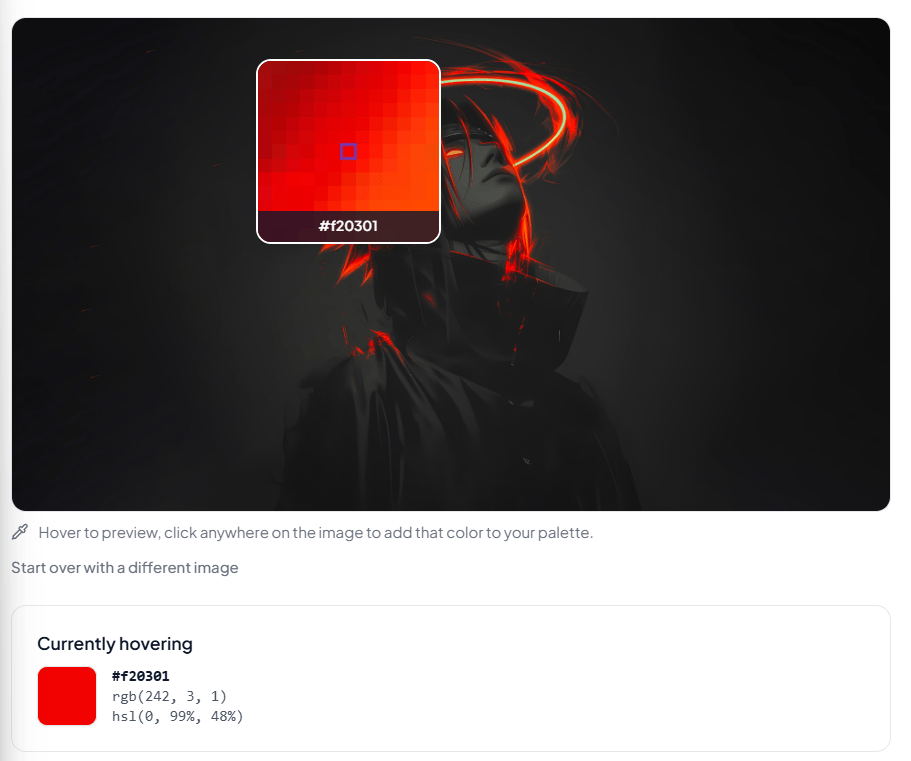
Preview the color of the currently hovering pixel or area.
You can preview the HEX, RGB and HSL color code of the pixel you are hovering currently.
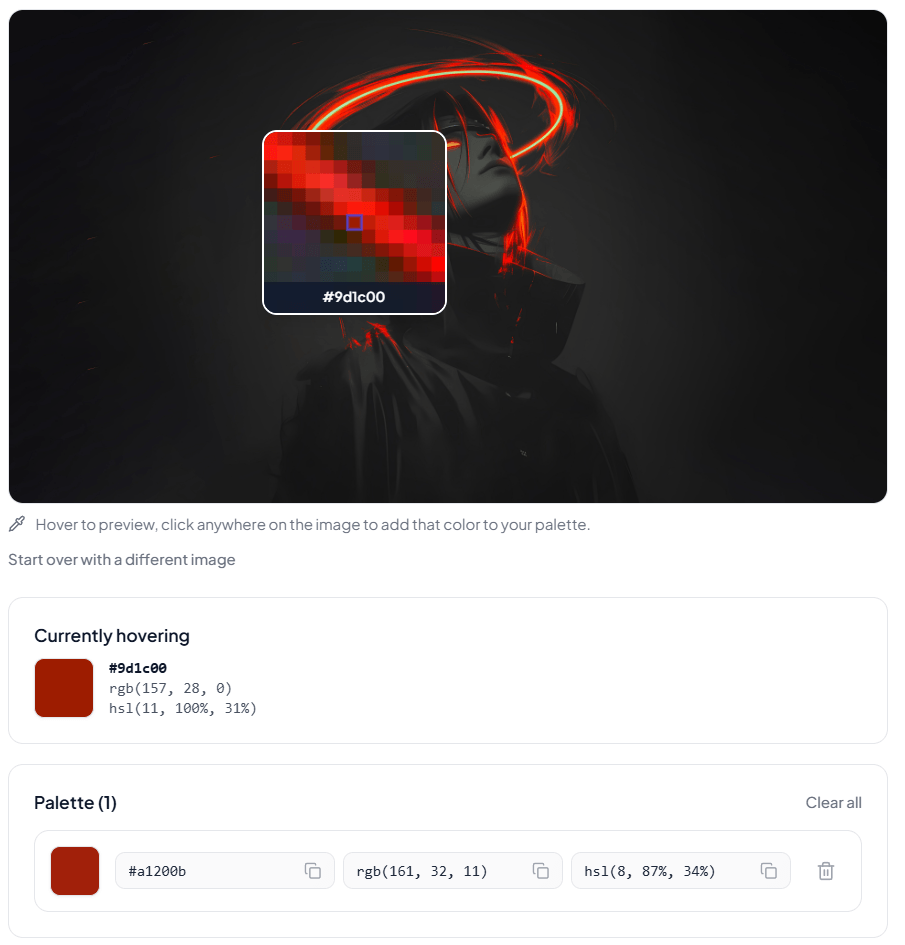
Click to save the color code into the palette and copy for further use.
To save the color code you can just click over the pixel whose color code you want to know. The tool will automatically save the HEX, RGB and HSL color code into the palette instantly. You can copy code form the palette.
Frequently asked questions
What is an Useful Tooler Image Color Picker?
Useful Tooler Image Color Picker is a free tool that allows you to select a color directly from an image and view its HEX, RGB, and HSL values.
How do I pick a color from an image?
Upload or drag and drop your image into the color picker, then select the desired area of the image. The tool identifies the selected color and displays its color values.
What is a HEX color code?
A HEX color code is a hexadecimal representation of a color, such as #FF5733. It is commonly used in HTML and CSS for defining colors.
What does RGB 255 mean?
In the RGB system, each red, green, and blue channel can normally have a value from 0 to 255. A value of 255 represents the highest intensity for that channel.
What is HSL?
HSL stands for Hue, Saturation, and Lightness. It is a color model that describes a color according to its hue, intensity, and brightness.
What is the difference between HEX and RGB?
HEX and RGB can represent the same colors using different formats. HEX uses hexadecimal numbers such as #FF0000, while RGB uses three numerical values such as RGB(255, 0, 0).
Can I create a color palette from an image?
Yes. Useful tooler allows you can select multiple colors from an image. And use their HEX, RGB, or HSL values to create a matching color palette.
Is useful tooler image color picker useful for web design?
Yes. Designers uses sampled colors to create consistent website backgrounds, buttons, typography, borders, and other UI elements.
Last updated:
Share this tool
Know someone who'd find it useful? Send it their way.